01
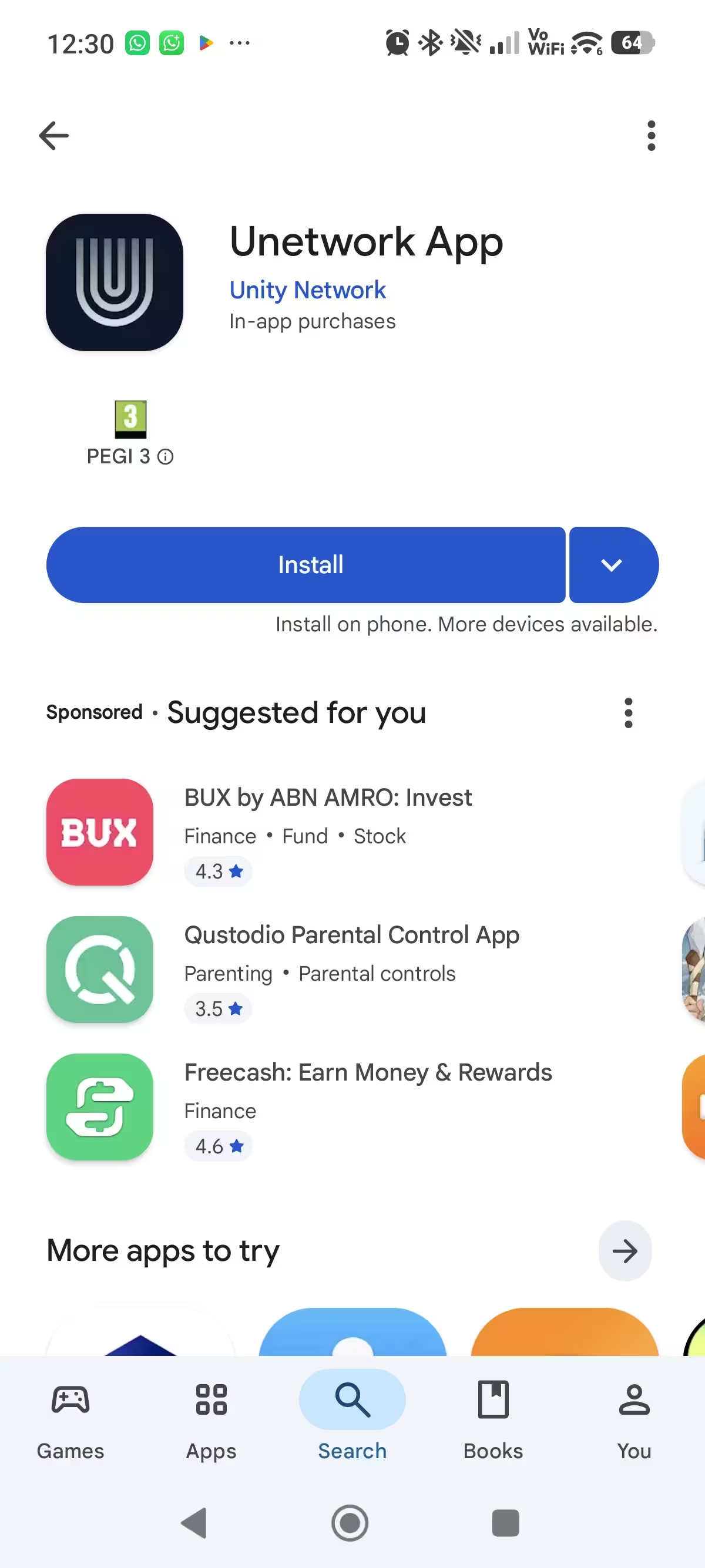
Download and open Unetwork
Install the official app from Google Play or the App Store.
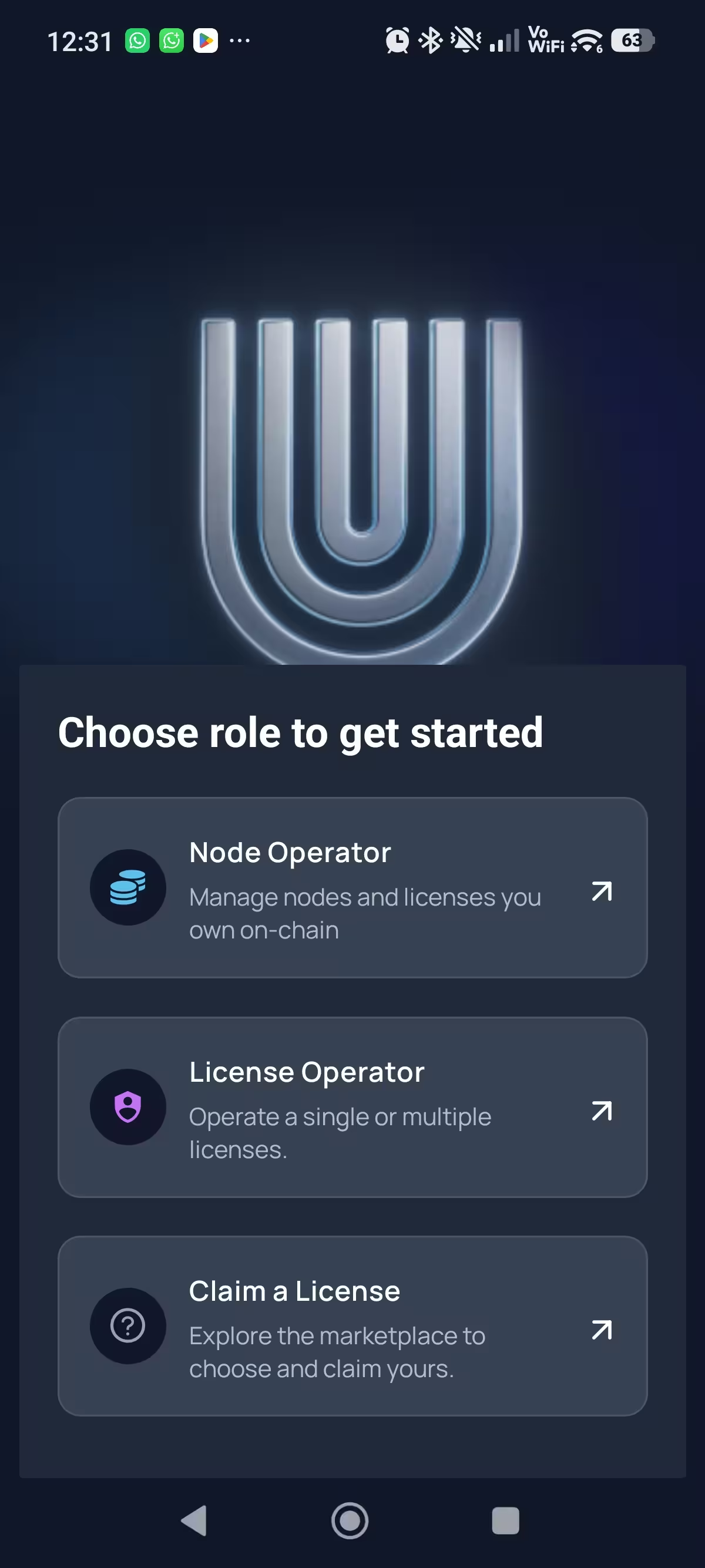
Open the app and tap Get Started.
Unetwork app setup
Get a licence code, install the official app, then activate one device and choose the tasks you want to run.
No payment needed to participate. You need one code per device.

The quick path
Follow these three stages in order. The detailed screen guide is below.
Request one free code for each device you want to activate.
Download Unetwork directly from Google Play or the App Store.
Enter your code, sign in by email, and bind the licence to your phone.
Before you start
Most setup problems are easier to avoid than fix.
Use the phone you want to keep connected for Unetwork tasks.
Wi-Fi works for many tasks. Some tasks may require mobile service.
Copy the code from your Unetwork Club email. You need one code per device.
The app sends a one-time code to confirm your sign-in.
Step by step
The wording may change slightly as the app is updated, but the setup order stays the same.
Install the official app from Google Play or the App Store.
Open the app and tap Get Started.
When the app asks how you want to continue, choose License Operator.
This is the in-app path for using a licence code from Unetwork Club.
Paste the code from your Unetwork Club email into the Lease Code field.
Check that the complete code is entered before you continue.
Get a licence code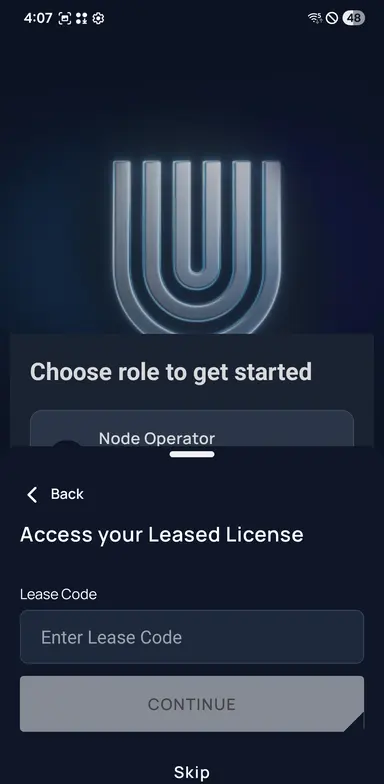
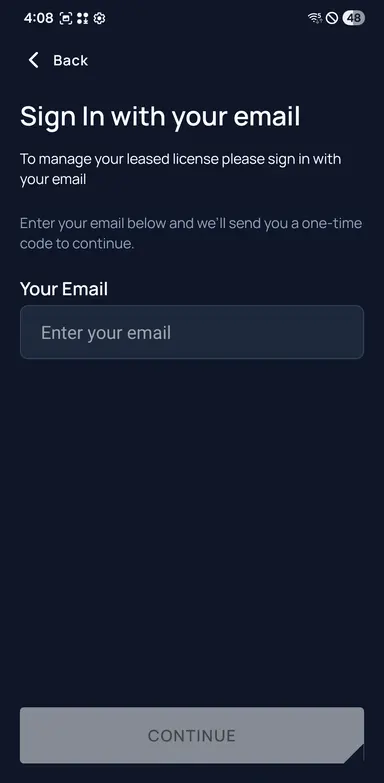
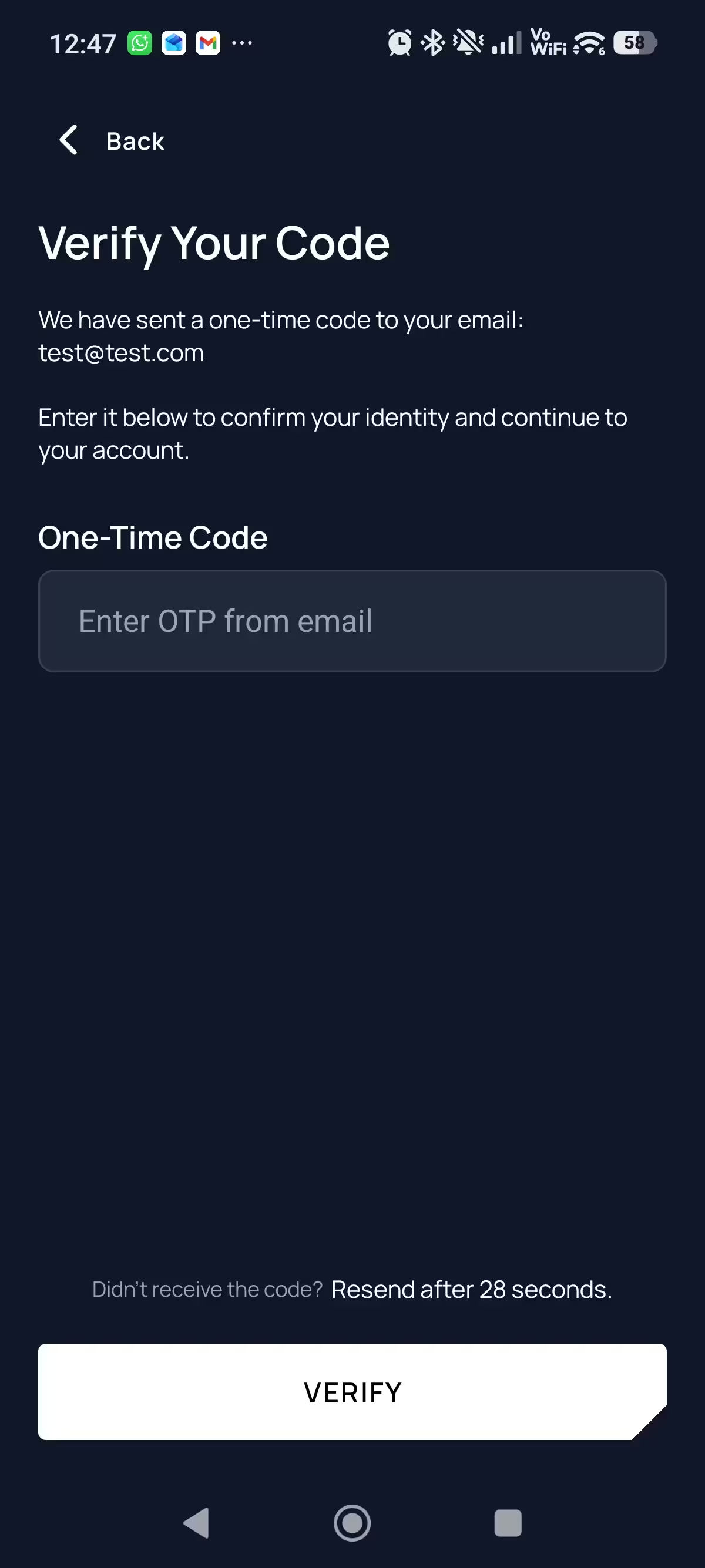
Choose email sign-in, then enter the email you want to use for your account.
Tap Continue and keep the app open while you check your inbox.
Open the email from Unetwork and enter the one-time code in the app.
If it has not arrived, wait for the countdown before requesting another one.
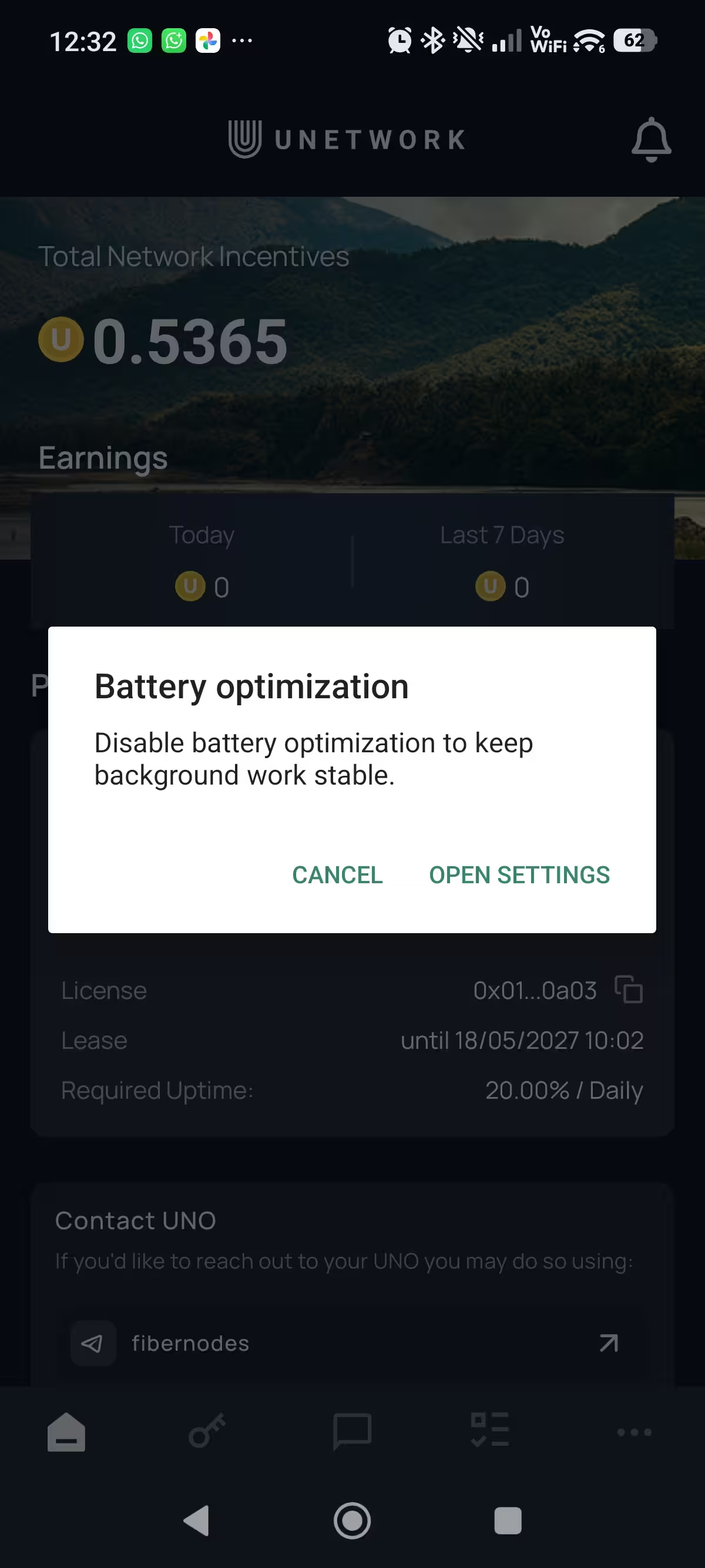
Review notifications and battery settings when the app asks.
Only enable a task after reading what it does and what it uses. You can change permissions later in your phone settings.
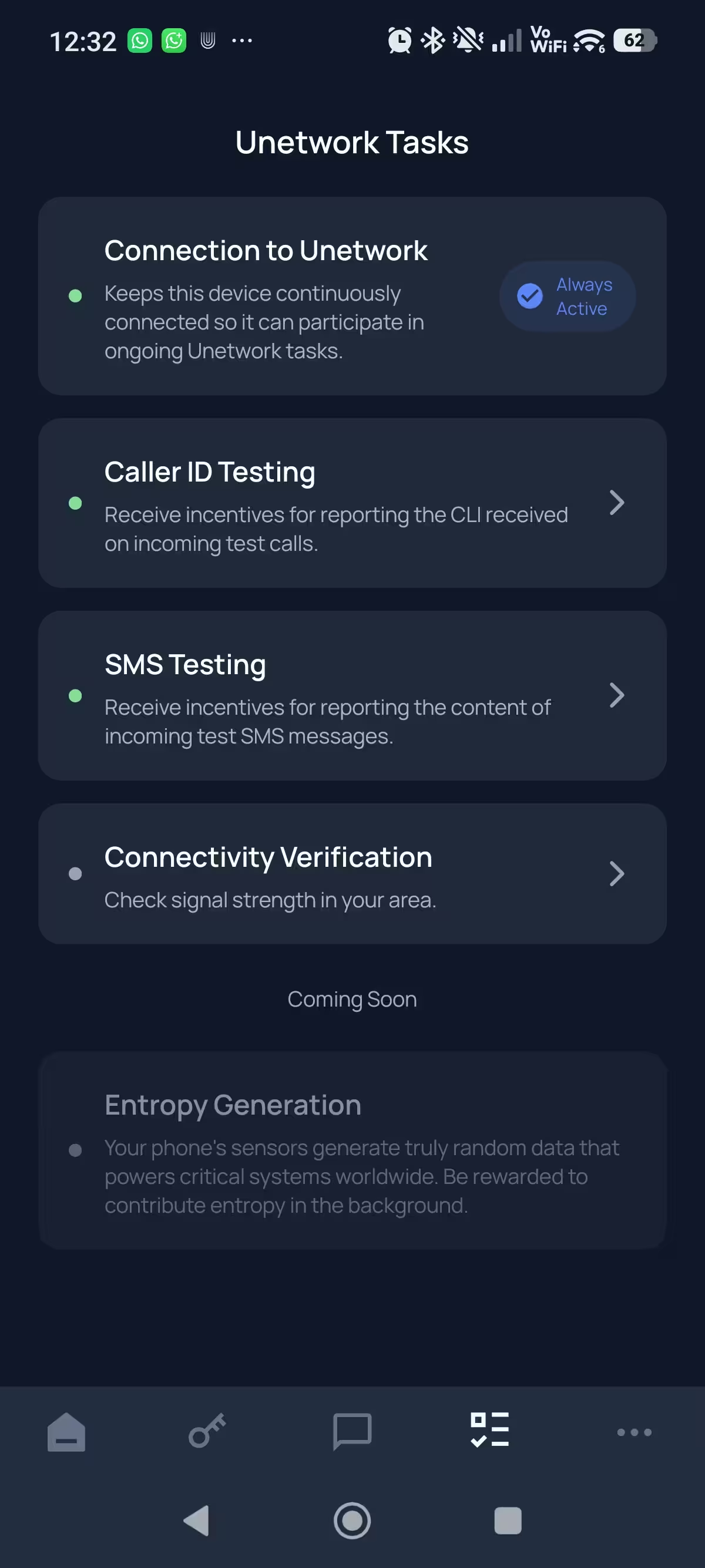
Open the task area and review the tasks available for your device.
Opt into the tasks you want to run. Availability depends on your phone, connection, mobile network and location.
Once you are connected
Use the app to review device status, available tasks and verified rewards.
Use the app to see whether your device is connected and ready for available tasks.
Read what each task does and what it uses before opting in. Task availability varies.
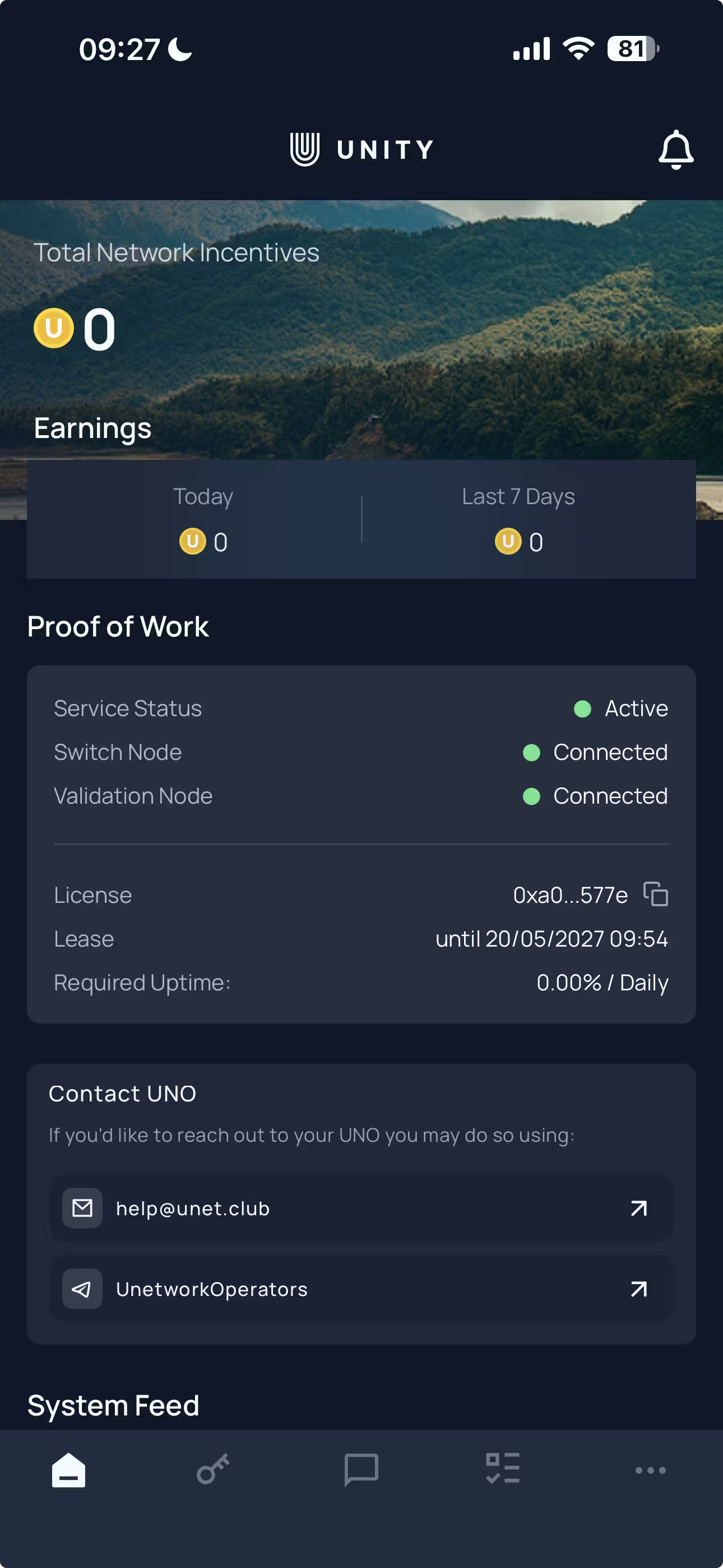
Completed work is checked before a reward is added. Rewards and availability vary.
Read the withdrawal guideSupport
Include the screen where you are stuck and the email used during setup. Never share a one-time code publicly.
Simple answers
Short answers for activation and the first time you use the app.
Request a free code from the Unetwork Club homepage. You need one code for each device.
Install Unetwork using the Google Play or App Store links on this page. Avoid unofficial downloads.
Check your spam folder and confirm the email address is correct. When the countdown ends, request another code.
Binding connects one licence to the phone you want to run. One code is needed for each device.
Not always. Tasks depend on your device, location, connection, mobile network and current demand. Rewards are added after completed work is checked.
Background tasks can only run while the phone is connected and the app has the permissions required for that task.
Use Unetwork Support for the app and general tasks. Use UNO support for licence and setup help.
Ready to begin?